
A website can look perfectly fine and still have problems with its headings, links, indexing settings, or loading speed.
Chrome extensions make finding these issues much easier. Instead of digging through source code or switching between different websites, you can analyze a page directly in your browser.
I’ve put together 10 of the best Chrome extensions for SEO and website analysis in 2027. These tools cover everything from on-page SEO and content structure to technical errors, competitor research, and website design.
Best Chrome Extensions for SEO – Quick Comparison
Here’s a quick overview of all 10 extensions and what each one does best.
| Chrome Extension | Best For | Pricing |
|---|---|---|
| Detailed SEO Extension | On-page SEO inspection | Free |
| Content SEO Check | Content and internal link analysis | Free |
| Ahrefs SEO Toolbar | SEO research and metrics | Free + Paid |
| SEO META in 1 CLICK | Meta tags and SEO metadata | Free |
| Redirect Path | Redirects and HTTP status codes | Free |
| Check My Links | Broken link detection | Free |
| Wappalyzer | Website technology analysis | Free extension |
| Style Inspector | Colors, typography, and design analysis | Free |
| Lighthouse | Performance and technical audits | Free |
| Similarweb | Competitor traffic analysis | Free + Paid |
Each extension handles a different part of website analysis. You don’t need to install all 10; choose the ones that match the work you do.
10 Best Chrome Extensions for SEO and Website Analysis in 2027
1. Detailed SEO Extension – Best for On-Page SEO Analysis
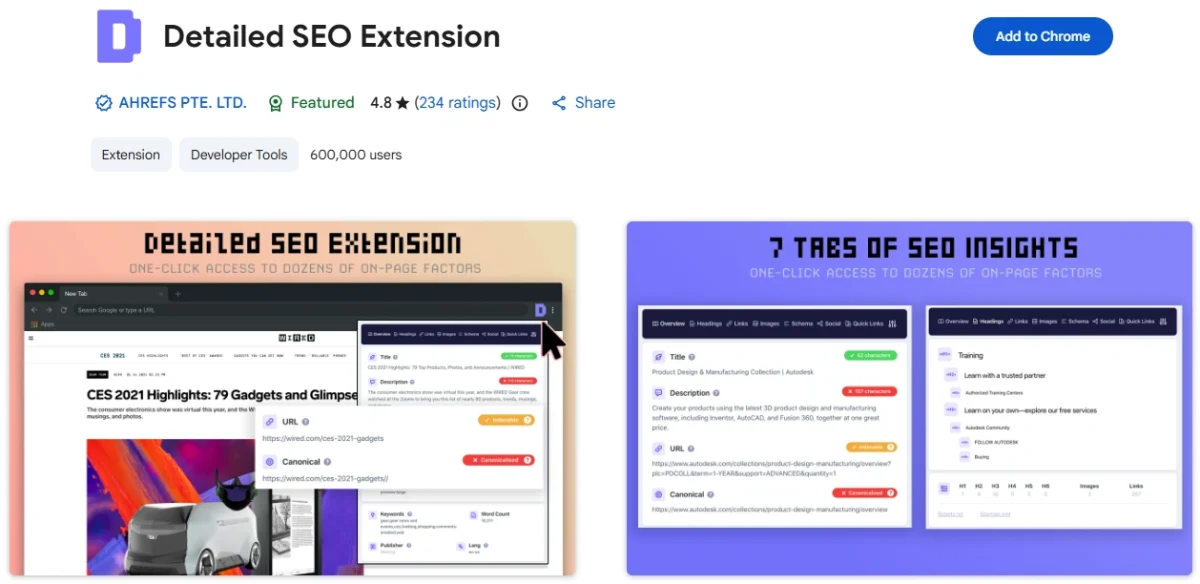
Detailed SEO Extension is one of the most practical tools for checking the basic SEO setup of a webpage.
It displays important on-page information in a compact interface, so you don’t have to open the website’s HTML source to find its SEO tags.
For example, when I want to understand how a competing article is structured, I can review its title, meta description, headings, and indexing directives from one place.
The extension also helps identify technical details that aren’t visible when reading the page normally.
Key Features:
- View page titles and meta descriptions.
- Inspect canonical URLs and robots directives.
- Examine the heading structure of a webpage.
- Review important on-page SEO elements.
- Access SEO information without opening developer tools.
The biggest advantage here is simplicity. Detailed SEO Extension keeps essential information together instead of overwhelming you with a complete technical audit.
It’s particularly useful for checking the basic elements of on-page SEO before moving on to more detailed analysis.
Pricing: Free.
2. Content SEO Check – Best for Content and Internal Link Analysis
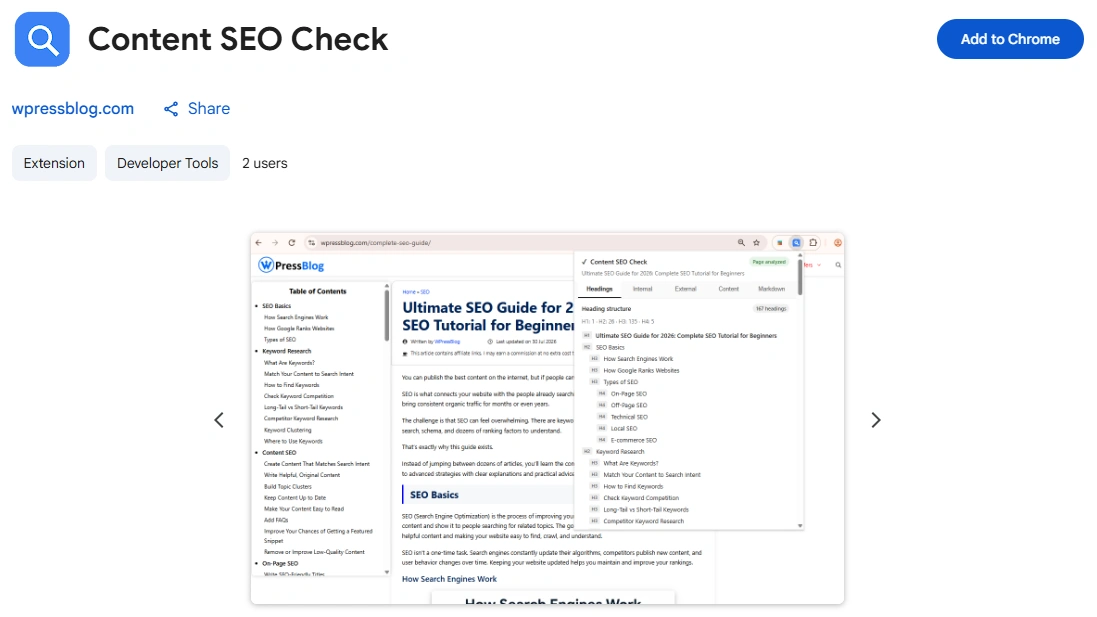
Content SEO Check is a free Chrome extension I developed for bloggers, content writers, and SEO professionals who want to examine how an article is organized.
Most on-page SEO tools concentrate on metadata and technical settings. Content SEO Check puts more attention on the article itself, especially its headings, links, and written content.
One particularly useful feature is the separate in-content link analysis. It lets you examine links placed inside the actual article rather than mixing them with navigation menus and footer links.
That makes it easier to study the internal linking strategy of competing blogs or audit links in your own published posts.
Key Features:
- Heading analysis: Displays H1 through H6 headings in a structured hierarchy.
- Internal links: Lists internal URLs alongside their anchor text and shows the total count.
- External links: Displays external URLs, anchor text, and follow or nofollow attributes.
- In-content links: Separates article links from other website links and displays the content word count.
- Markdown export: Downloads article content as a
.mdfile for editing, reference, or content analysis.
For example, if you’re studying a competitor’s 3,000-word article, you can identify its heading structure, examine how it links to related content, and download the article in Markdown format.
The extension works directly on the current webpage. It doesn’t require an account, and its content analysis runs locally in your browser.
I built Content SEO Check to make everyday content analysis simpler, especially for people who publish and optimize blog posts regularly.
Pricing: Completely free.
3. Ahrefs SEO Toolbar – Best for SEO Research and Competitor Analysis
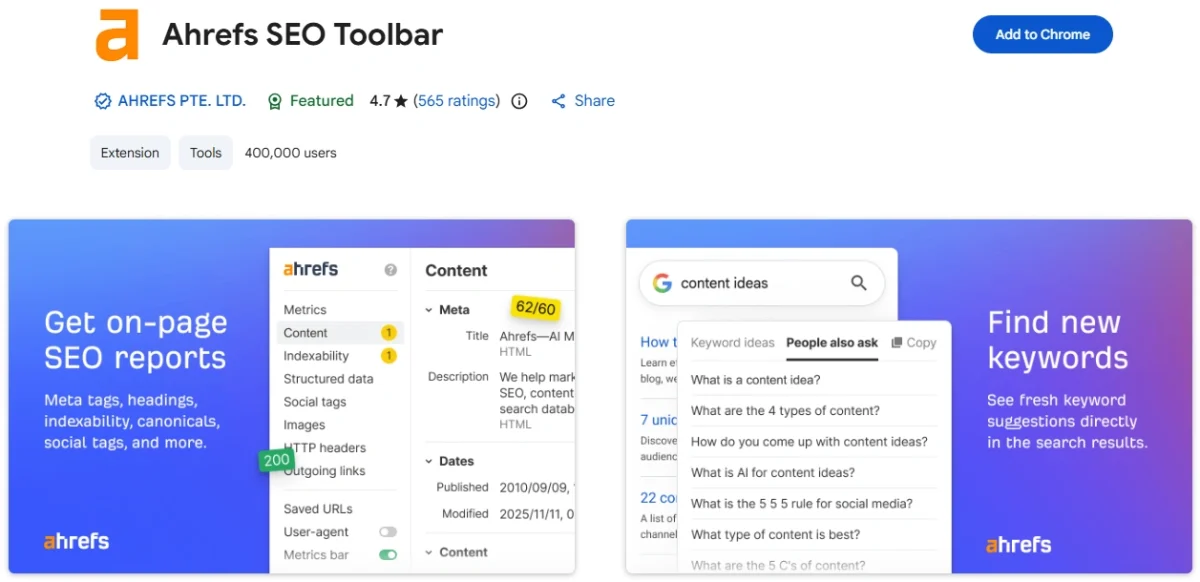
Ahrefs SEO Toolbar brings several SEO research tools into Chrome, making it useful when analyzing websites and Google search results.
Unlike basic page inspection extensions, it also supports search research. You can change the Google search location, examine search results from different countries, and explore keyword ideas without using a VPN.
Its link analysis tools help you investigate outgoing links, redirected URLs, and broken links. You can also export link data to CSV when you need a separate report.
Key Features:
- Analyze SEO information on individual webpages.
- Check search results across different countries and languages.
- Highlight outgoing links and export link data.
- Trace redirects and examine HTTP headers.
- Access Domain Rating (DR) and URL Rating (UR) with a free Ahrefs account.
- Unlock additional backlink, keyword, and organic traffic metrics with a paid Ahrefs plan.
The paid metrics are particularly useful when comparing competing domains. You can examine referring domains, backlink counts, keyword rankings, and estimated organic traffic without opening a separate Ahrefs report.
However, you don’t need a paid plan for the toolbar’s core on-page inspection features.
Pricing: Free extension with additional metrics available through Ahrefs accounts and paid plans.
4. SEO META in 1 CLICK – Best for Checking Meta Tags
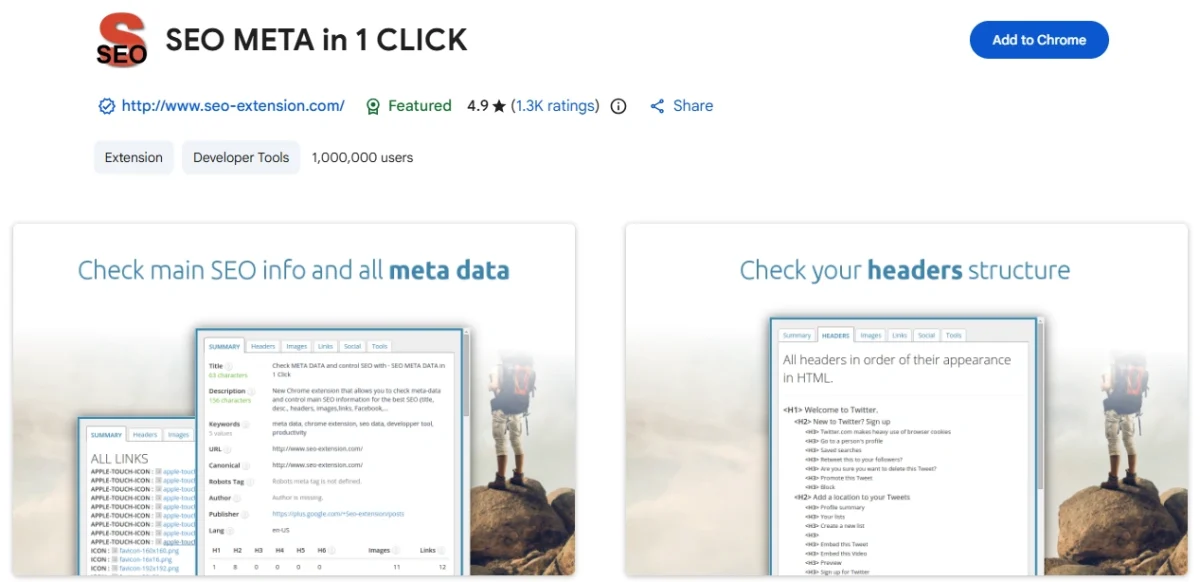
SEO META in 1 CLICK is designed for inspecting the metadata that search engines and social platforms read from a webpage.
Its interface organizes this information into separate sections, allowing you to find specific tags without searching through HTML code.
I particularly like this type of extension for checking how a published page is configured after making SEO changes in WordPress.
For example, updating an SEO plugin’s settings doesn’t automatically mean the correct metadata appears on every page. Inspecting the published HTML helps you catch missing or unexpected values.
Key Features:
- Displays SEO titles and descriptions with character counts.
- Checks canonical URLs and meta robots directives.
- Shows images with and without ALT attributes.
- Displays Open Graph and Twitter/X metadata.
- Provides access to robots.txt and XML sitemap information.
The social metadata section is especially helpful for checking whether a page has the tags needed for sharing on Facebook, LinkedIn, and other platforms.
You can inspect the published values instead of relying entirely on the settings displayed by WordPress SEO tools in their editors.
Pricing: Free.
5. Redirect Path – Best for Checking Redirects and HTTP Status Codes
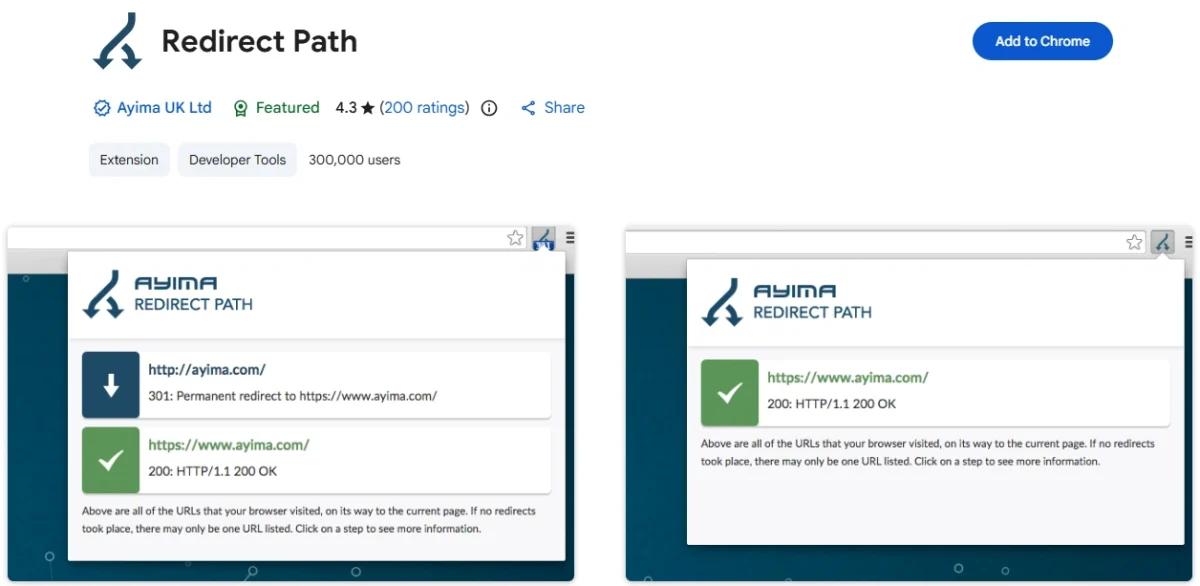
Redirect Path is a useful extension for identifying what happens between clicking a URL and reaching the final webpage.
A link might appear to work normally while sending visitors through several redirects. Redirect Path reveals those steps and displays the HTTP status codes returned along the way.
The extension identifies common responses such as 301, 302, 404, and 500. It also detects client-side redirects, including JavaScript and meta refresh redirects.
Key Features:
- Identifies permanent 301 redirects.
- Detects temporary 302 redirects.
- Highlights 404 and 500 HTTP errors.
- Shows redirect paths and destination URLs.
- Displays HTTP headers, including caching and server information.
This extension is valuable when changing WordPress permalinks, migrating a website, or fixing redirected internal links.
For example, imagine an old blog URL redirects to another address, which then redirects again to the current article. Redirect Path helps you trace that chain and update the original link to point directly to the correct destination.
Pricing: Free.
6. Check My Links – Best for Finding Broken Links
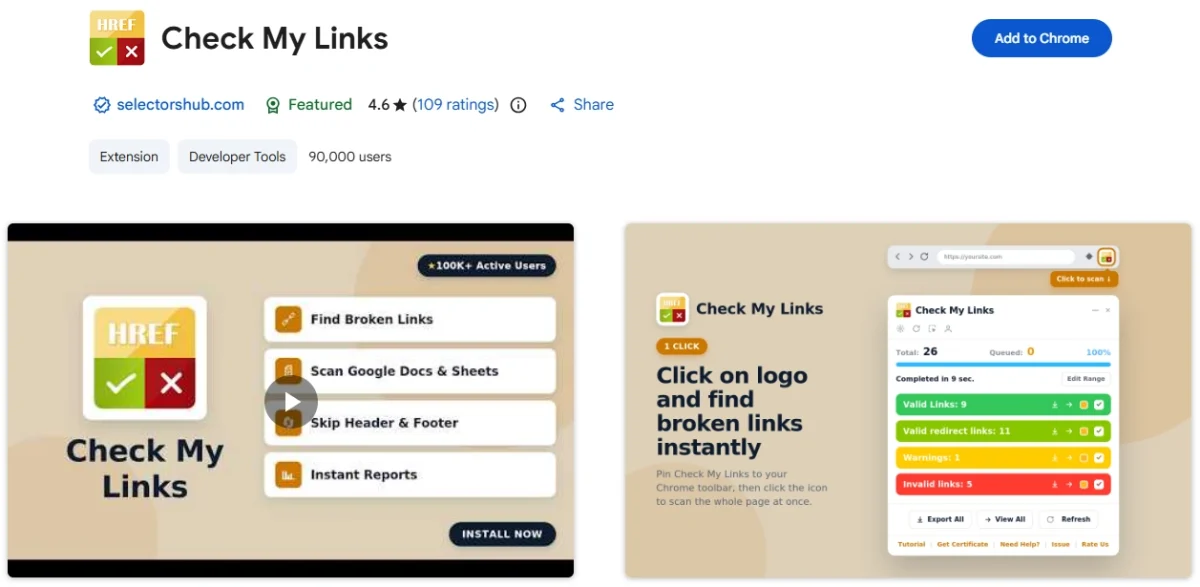
Check My Links helps you identify broken or invalid links on a webpage without opening each URL manually.
After starting a scan, the extension checks links and highlights their status directly on the page.
It distinguishes valid links from broken and redirected ones, making it easier to find links that need attention.
Key Features:
- Scans webpage links in a single operation.
- Highlights valid, broken, and redirected links.
- Lets you exclude sections such as headers and footers.
- Provides reports for broken and invalid links.
- Supports checking links in Google Docs and spreadsheets.
This is especially useful when updating older articles containing external resources.
For example, a blogging tutorial published several years ago could link to documentation that has since been deleted or moved. Check My Links helps you locate those URLs and replace them with working destinations.
It’s also useful during a website content audit because you can identify link problems without manually maintaining a spreadsheet of every URL.
Pricing: Free, with an optional advanced feature key.
7. Wappalyzer – Best for Identifying Website Technologies
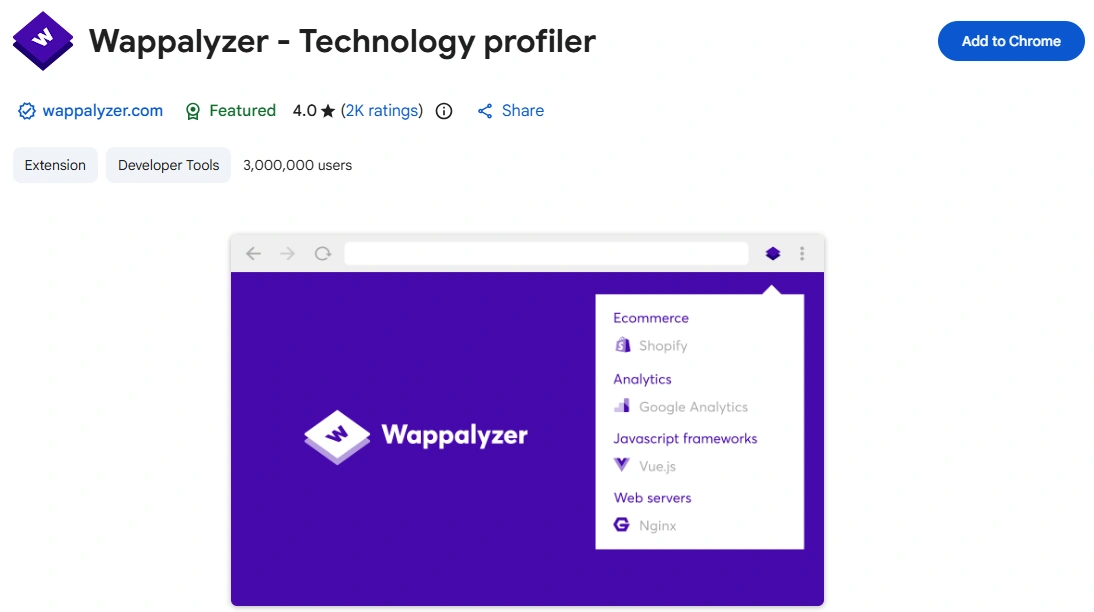
Wappalyzer answers a question that’s useful when researching other websites: What technology is this website using?
The extension examines a webpage and identifies detectable technologies behind it.
This includes content management systems, JavaScript frameworks, analytics platforms, ecommerce software, and other technical services.
For WordPress users, Wappalyzer is helpful when researching websites built with different CMS platforms or trying to understand which tools a business uses.
Key Features:
- Identifies content management systems, including WordPress.
- Detects JavaScript frameworks and libraries.
- Recognizes ecommerce platforms and payment technologies.
- Shows detectable analytics and marketing tools.
- Identifies technologies such as CDNs and web frameworks.
- Supports exporting detected technologies to CSV.
Suppose you find a website with an interesting ecommerce setup. Wappalyzer helps you identify its platform and related technology without searching through its source code.
The extension is based on detectable technology signatures, so it reports what it recognizes rather than exposing a website’s entire private infrastructure.
Pricing: Free Chrome extension. Wappalyzer also offers separate paid business products.
8. Style Inspector – Best for Website Design and Typography Analysis
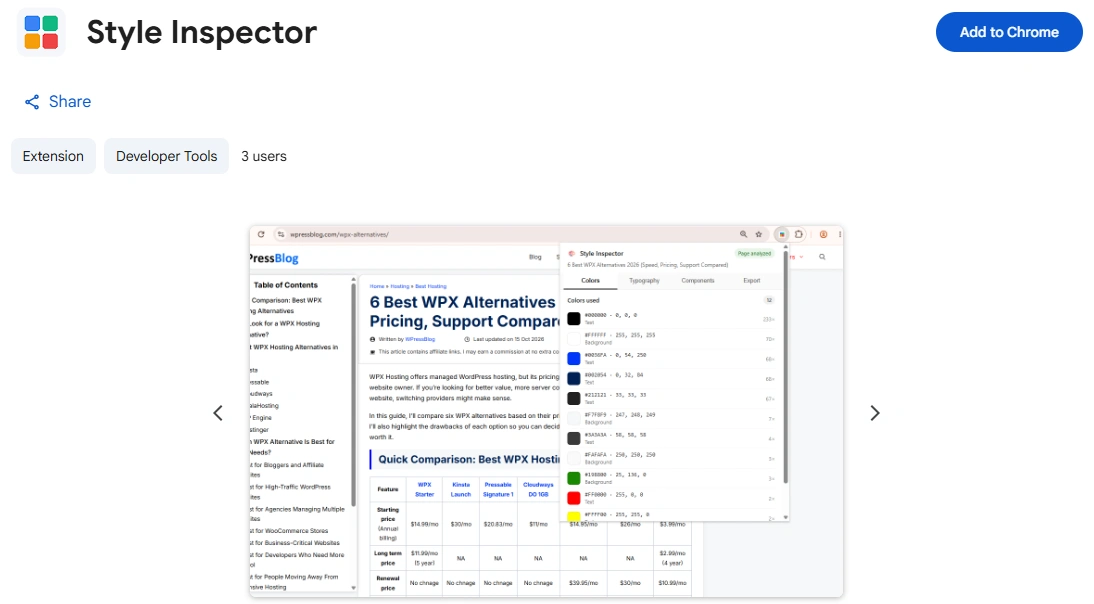
Style Inspector is another free Chrome extension I developed, this time for analyzing the visual design of websites.
While SEO extensions inspect content and technical elements, Style Inspector examines the colors, typography, and component styling used on a webpage.
It’s useful for WordPress users, web designers, and developers who want to understand the visual details of a website without manually examining CSS rules.
For example, if you find a website with a clean typography system and an attractive color palette, Style Inspector helps you collect those design values for reference.
Key Features:
- Color analysis: Identifies prominent webpage colors with HEX and RGB values, usage counts, and color swatches.
- Typography inspection: Shows font families, sizes, weights, and line heights for body text and headings.
- Component styles: Displays styling information for buttons and links.
- Color copying: Lets you copy color values directly.
- Markdown export: Downloads a report containing design information.
- JSON export: Copies design tokens in JSON format.
One thing I find particularly useful is having typography and color information together.
Instead of opening Chrome DevTools to inspect individual elements, you can view the design details in a simpler interface.
For WordPress users working with themes such as GeneratePress, Astra, or Kadence, this is a practical way to research typography and color combinations before building a new layout.
Style Inspector doesn’t collect, store, or transmit the analyzed webpage data. Its inspection runs locally in Chrome.
Pricing: Completely free.
9. Lighthouse – Best for Website Performance and Technical Audits
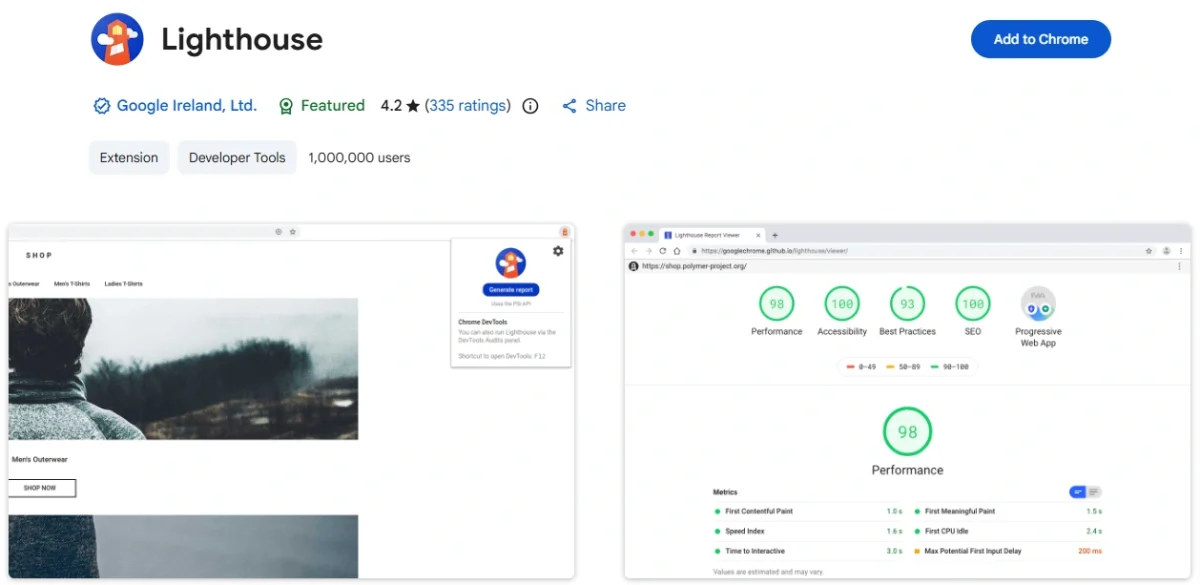
Lighthouse is Google’s open-source website auditing tool. It evaluates webpages and generates reports showing where improvements are needed.
Unlike extensions that simply display existing page information, Lighthouse runs automated tests and provides scores alongside specific audit findings.
Its reports cover four major categories:
- Performance: Measures loading performance and identifies opportunities to improve page speed.
- Accessibility: Checks selected accessibility issues that could affect visitors.
- Best Practices: Identifies problems related to web development and browser recommendations.
- SEO: Evaluates technical SEO checks, including essential crawlability and metadata requirements.
One of Lighthouse’s most useful features is its detailed performance diagnostics.
For example, when a webpage loads slowly, the report helps identify resources and rendering problems contributing to that result.
It also provides recommendations explaining which issues to address.
Lighthouse scores reflect automated audit results, not Google ranking positions or a complete assessment of SEO quality. Its performance findings also help you identify areas for improving WordPress loading speed.
You can use Lighthouse through its Chrome extension or the Lighthouse panel already included in Chrome DevTools.
Pricing: Free.
10. Similarweb – Best for Website Traffic and Competitor Research
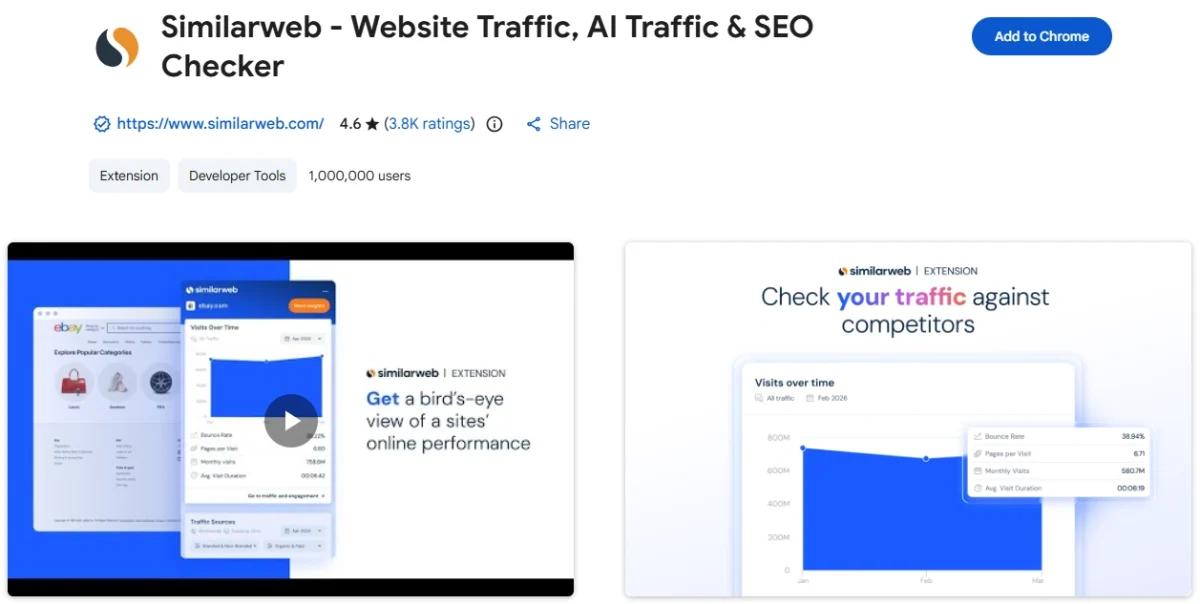
Similarweb is useful when you want to understand a website’s audience and how visitors discover it.
The Chrome extension provides traffic insights without requiring access to the website’s private analytics account.
It goes beyond basic SEO inspection by showing broader traffic patterns, including search, social media, referrals, and direct visits.
Similarweb also includes AI traffic research, helping marketers understand how AI platforms contribute to website discovery.
Key Features:
- View estimated website visits and traffic trends.
- Explore traffic sources such as search, direct, social, and referrals.
- Identify leading countries sending visitors to a website.
- Examine website rankings and engagement metrics.
- Explore top keywords associated with a website.
- Analyze available AI chatbot traffic insights.
For example, if you’re researching a competing blog, Similarweb can help you understand whether its audience comes primarily from organic search or other marketing channels.
That information helps you evaluate the broader traffic strategy behind a website rather than looking only at its Google rankings.
Similarweb’s competitor traffic figures are modeled estimates, not data taken from a competitor’s private Google Analytics account.
Pricing: Free extension with access to additional data and research features through Similarweb’s paid platform.
How to Choose the Right Chrome Extensions for SEO
Installing more extensions doesn’t automatically lead to better SEO analysis. I recommend choosing tools based on the information you actually need and how you’ll use the results.
Here are the main things I consider before installing an extension.
1. Choose Tools That Solve Specific Problems
Start with the tasks you perform regularly.
If you spend most of your time editing articles, prioritize tools that help you inspect content structure and linking.
If you manage website migrations, redirect and HTTP status analysis deserve more attention.
For technical website maintenance, performance auditing is more valuable than having five different metadata inspectors.
2. Check Browser Permissions
Chrome extensions request permissions to access browser features and webpage information.
Before installing one, review the permissions listed in the Chrome Web Store. Pay particular attention to extensions requesting access to browsing activity or website content.
A tool that works only on the active tab has different access requirements from one that continuously analyzes browsing activity.
3. Look at Updates and Compatibility
Check the extension’s latest update date and compatibility with your version of Chrome.
Google periodically changes its extension platform, so ongoing maintenance matters.
Reading recent reviews also helps identify installation problems, broken features, and usability complaints.
4. Keep Your Browser Organized
I prefer keeping frequently used extensions pinned to the Chrome toolbar and leaving occasional-use tools unpinned.
You can manage installed extensions by opening chrome://extensions/ in Chrome.
Remove extensions you no longer use, especially those with broad access permissions. This keeps your browser easier to manage.
Frequently Asked Questions
Are Chrome extensions useful for SEO?
Yes. SEO Chrome extensions help inspect titles, meta tags, headings, links, redirects, and other website elements directly from your browser. They’re especially useful for quick page-level analysis.
What is the best free Chrome extension for on-page SEO?
Detailed SEO Extension is a strong choice for general on-page inspection because it displays essential SEO information in a compact interface. For article structure, internal linking, and content analysis, Content SEO Check is another free option.
Can I use SEO Chrome extensions on WordPress websites?
Yes. These extensions work with published WordPress webpages because they inspect the page loaded in Chrome. You don’t need to install a separate WordPress plugin to use them.
Can Chrome extensions help analyze competitor websites?
Yes. You can examine publicly accessible page elements, technology choices, content organization, and available traffic estimates. However, Chrome extensions don’t provide access to a competitor’s private Search Console or analytics data.
Do SEO Chrome extensions improve Google rankings?
Chrome extensions don’t improve rankings simply by being installed. They help you identify problems and research opportunities. The improvements come from fixing technical errors, strengthening content, and making meaningful changes to your website.
Can I use multiple SEO Chrome extensions together?
Yes. You can install several extensions and use each for a different task. You don’t need to keep every extension actively running or pinned to your toolbar.
Are all SEO Chrome extensions free?
No. Some extensions are completely free, while others provide free inspection tools and require paid subscriptions for advanced metrics or reports. Always check which features are included before purchasing a plan.
Final Thoughts
Chrome extensions save time when you need information about a website without opening several different tools.
For general SEO checks, I’d start with Detailed SEO Extension. For content-heavy websites and blogs, Content SEO Check is useful for understanding article structure and internal linking. Lighthouse is a strong choice when technical performance needs attention.
The other extensions serve more specialized tasks, from investigating redirects to researching website technologies and competitor traffic.
My advice is simple: install the tools that match your workflow, use the information to make practical improvements, and avoid cluttering Chrome with extensions you rarely open.